
Article
Agentic UI engineering for Flutter

The agentic engineering workflow for Flutter UI
Prevent bugs at generation time, let the agent self-correct in flutter test, then review what is left in Widgetbook Cloud.
Summary
Coding agents generate Flutter UI faster than ever. The hard problem is no longer speed, it is quality. How do you make sure an agent ships a high-quality PR that does not quietly introduce UI bugs like design system or accessibility violations? And how do you, as a human, review not just the code but the visual changes an agent made, without clicking through every screen by hand?
This guide walks through a complete agent-assisted development workflow for Flutter. You will learn how to:
give your design system to an agent as context
build self-healing feedback loops with Widgetbook and
flutter testthat fix UI bugs and match Flutter UI to Figma designsreview your agent's work in Widgetbook Cloud
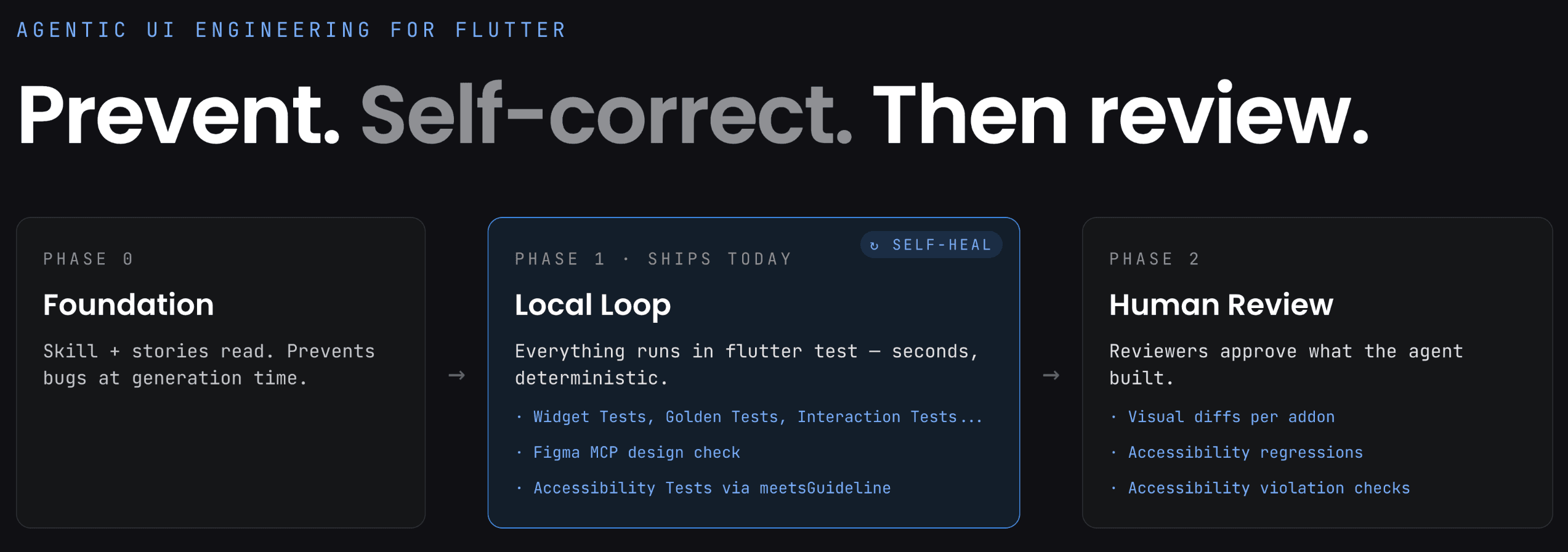
The workflow has three phases:
Prevent. The agent learns your design system before it generates a single widget.
Self-correct. Every change runs through
flutter test, where golden, Figma, and accessibility checks give the agent structured, deterministic feedback it can act on without a human in the loop.Review. Widgetbook Cloud is the surface where a human approves what the agent built, with visual diffs and accessibility checks per scenario.
Coding agents are fast but sloppy
Ask a coding agent to build a Flutter screen and it will produce something that compiles in seconds. The trouble is that the agent has no idea what your design system looks like at the rendering level.
The agent cannot know that your PaymentCard needs an expired state, that your StatusBadge breaks in dark mode when the label runs past twelve characters, or that your AppButton renders incorrectly on a small device like the iPhone 13 mini, not because of a type error but because of how your theme is configured. Without that context the agent guesses, and the output drifts from your design system with every generation. It generates UI fast. But it doesn't match your design system.
There are two specific failure modes to design around:
Design system drift. The agent reaches for
ElevatedButtoninstead of yourAppButton, hardcodesColor(0xFFFF0000)instead of resolvingtheme.colorScheme.error, or drops aSizedBox(height: 16)whereAppSpacing.mediumbelongs. The screen looks roughly right and ships roughly wrong.Accessibility violations. A reject button at 32x32 is below the minimum touch target. An icon button with no label is invisible to a screen reader. A "3.2% pixel diff" does not tell you any of this.
The second half of the problem is review. Even when the code looks good, UI review is visual review. A human reviewer should not have to run the app and manually navigate to every state, theme, breakpoint, and locale to confirm the agent did the right thing.
Customer showcase
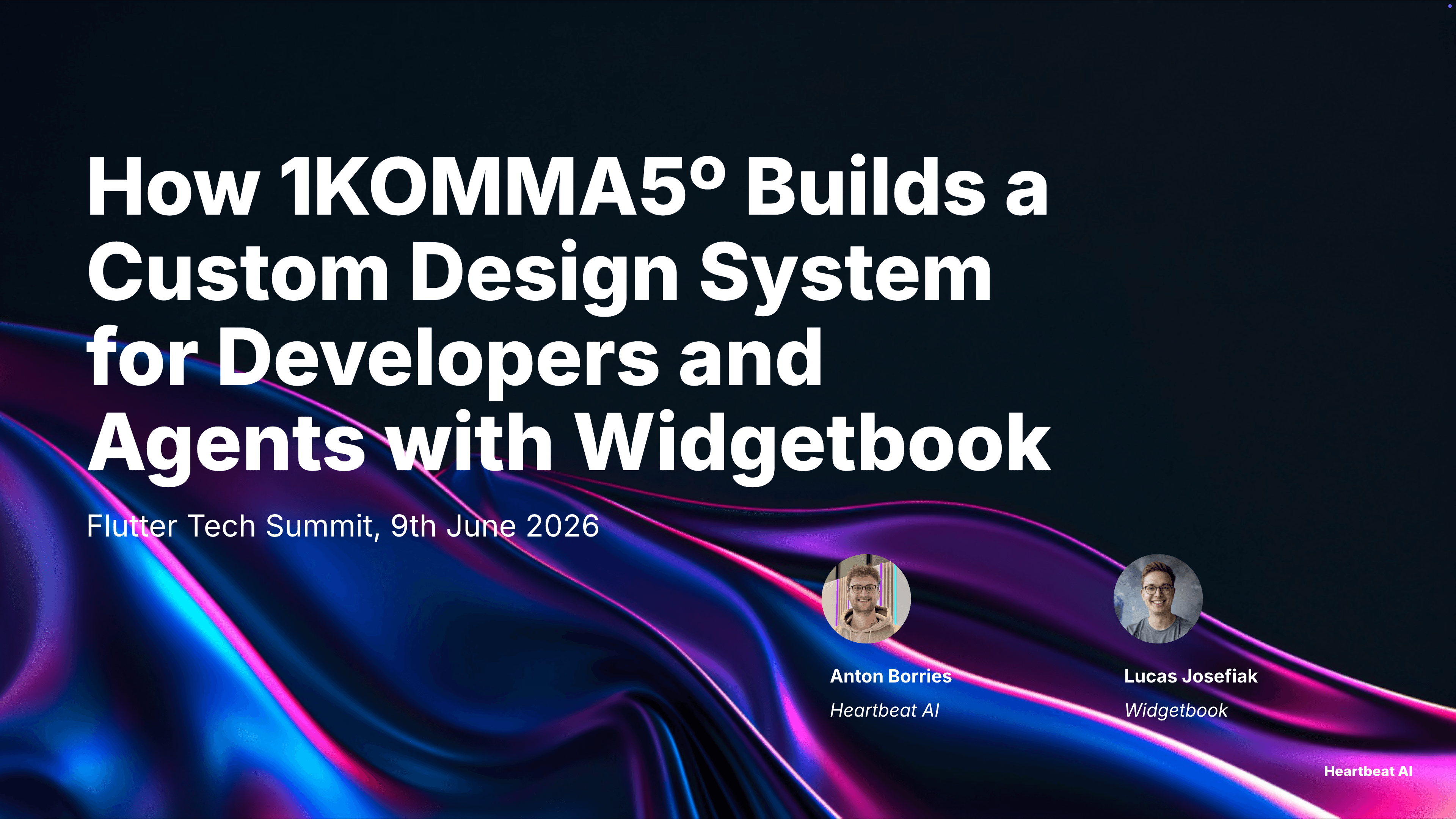
Anton Borries (Senior Software Engineer at 1KOMMA5º and Dart & Flutter GDE) and I gave a talk at Flutter Tech Summit on how 1KOMMA5º builds their custom design system for developers and agents with Widgetbook.
1KOMMA5° builds energy management products under the Heartbeat AI brand. The team built Harmonized, a custom design system with 1:1 parity between Figma and Flutter: atoms and tokens generated through build_runner, and components implemented by hand to match their Figma counterparts exactly. Components are built and catalogued in isolation in widgetbook_harmonized, and the product itself is built in widgetbook_heartbeat. More details on how they set up and maintain a custom design system can be found in our case study.
The interesting part for this guide is what happened when they brought agents into the mix. A prompt like "build me an energy management product, make it pretty" can actually work when the agent has a strong foundation to build on. Harmonized, surfaced to the agent through skills and catalogued in Widgetbook, is that foundation. Strong foundations like design systems are what make agentic development succeed rather than drift.
In the following, you will learn how to create a similar process.
Phase 0 — Prevent: the agent learns your design system before it generates
The cheapest bug to fix is the one the agent never writes. Prevention happens before generation, by loading the design system into the agent's context.
Give the agent a skill
A skill is a plain text file the agent loads at the start of each session. It teaches the v4 story API, your team's conventions, and the workflow to follow, so the agent does not rediscover your rules every time.
A minimal skill covers:
Agentic design-to-code feedback loop. Ensure the Figma design is properly implemented.
Use theme tokens. Never hardcode colors, spacing, or text styles. Use
context.useCases.colorsandcontext.harmonizedSpacingrather than raw values.Co-locate stories. Every widget gets a
*.stories.dartnext to it, with one scenario per state: pending, approved, rejected, expired, error.Wrap interactive groups in
Semanticswith contextual labels. No bare verbs.Which components exist and how to discover them:
AppButton,AppCard,TransactionRow,PaymentStatusPill, and so on.
Here, you can find an example Widgetbook skill setup.
The agent reads your story files
With the skill loaded, the agent reads your existing stories before writing any code. In Claude Code or Cursor this is file-system access with no extra tooling:
From those files it builds a complete picture of your design system. The v4 generated API (Meta(Component.new), _Story, _Args, _Scenario) is explicit, typed, and consistent across every widget, which is exactly what makes it readable by an agent.
Widget discovery. Every Meta(Component.new) tells the agent which widgets exist and where they live.
Testable interface per widget. Generated _Args expose every parameter with its type, so the agent does not need to read widget source or guess.
Valid usage patterns. Existing scenarios show the agent which states actually matter in your codebase, which is the difference between reading an API reference and reading real examples.
Valid configurations. Mode definitions tell the agent which theme, locale, and viewport combinations are legitimate.
Back it with lint rules
A design system is only useful if it is actually used. Custom lint rules turn "please use the design system" into an analyzer warning the agent is told to clear. A banned ElevatedButton surfaces as Use AppButton.primary instead, the agent reads the warning, and fixes it before the code is ever committed. The instruction in AGENTS.md is one line: use components from the design system when building UI, and address all analyzer and lint warnings.
Either create your own lint rules or try DCM.
The result of Phase 0 is that the agent reaches for AppButton, not IconButton, and for a token, not a hardcoded value. Prevention, not correction.
Phase 1 - Translating the Figma design into Flutter code
Let's implement the following PaymentRequestRow from Figma:
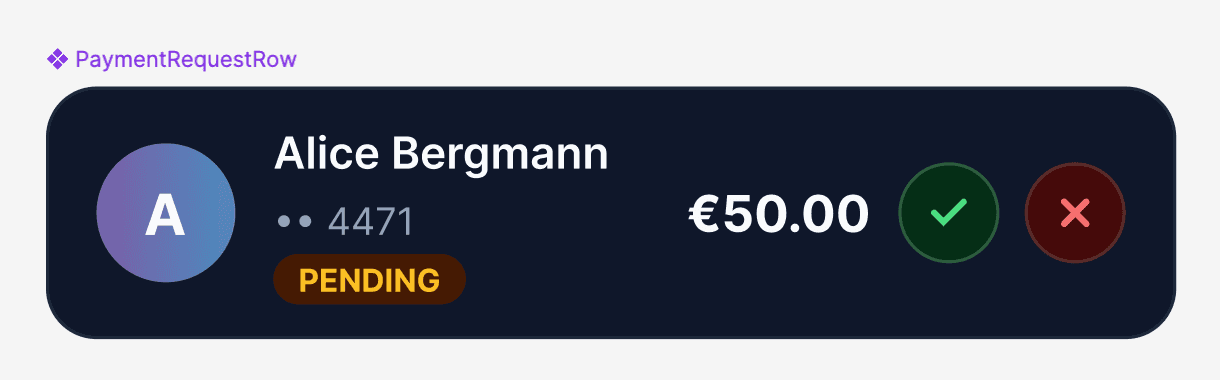
Before we start, please ensure:
Widgetbook v4 and the corresponding skills are integrated
Figma MCP is connected
Flutter & Dart MCP is connected
In the following, I'm using Claude Code with Opus 4.8 in Visual Studio Code. That's not a requirement but a personal preference. We also tested this workflow successfully with Gemini and GPT. Feel free to use the LLM and IDE of your choice.
We can now simply prompt: Build this component [link to Figma component]
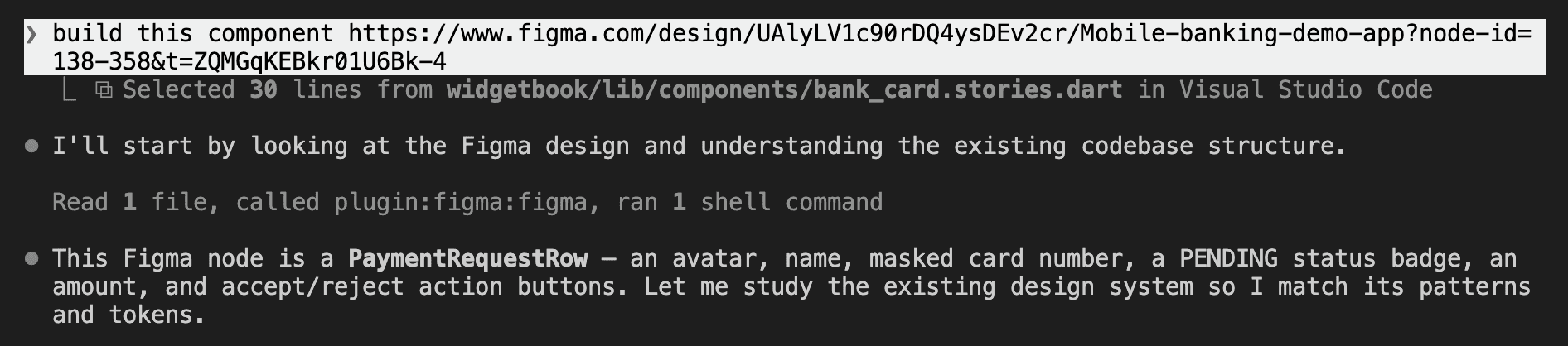
The agent pulls all necessary information from Figma and scans our Flutter design system for existing patterns.
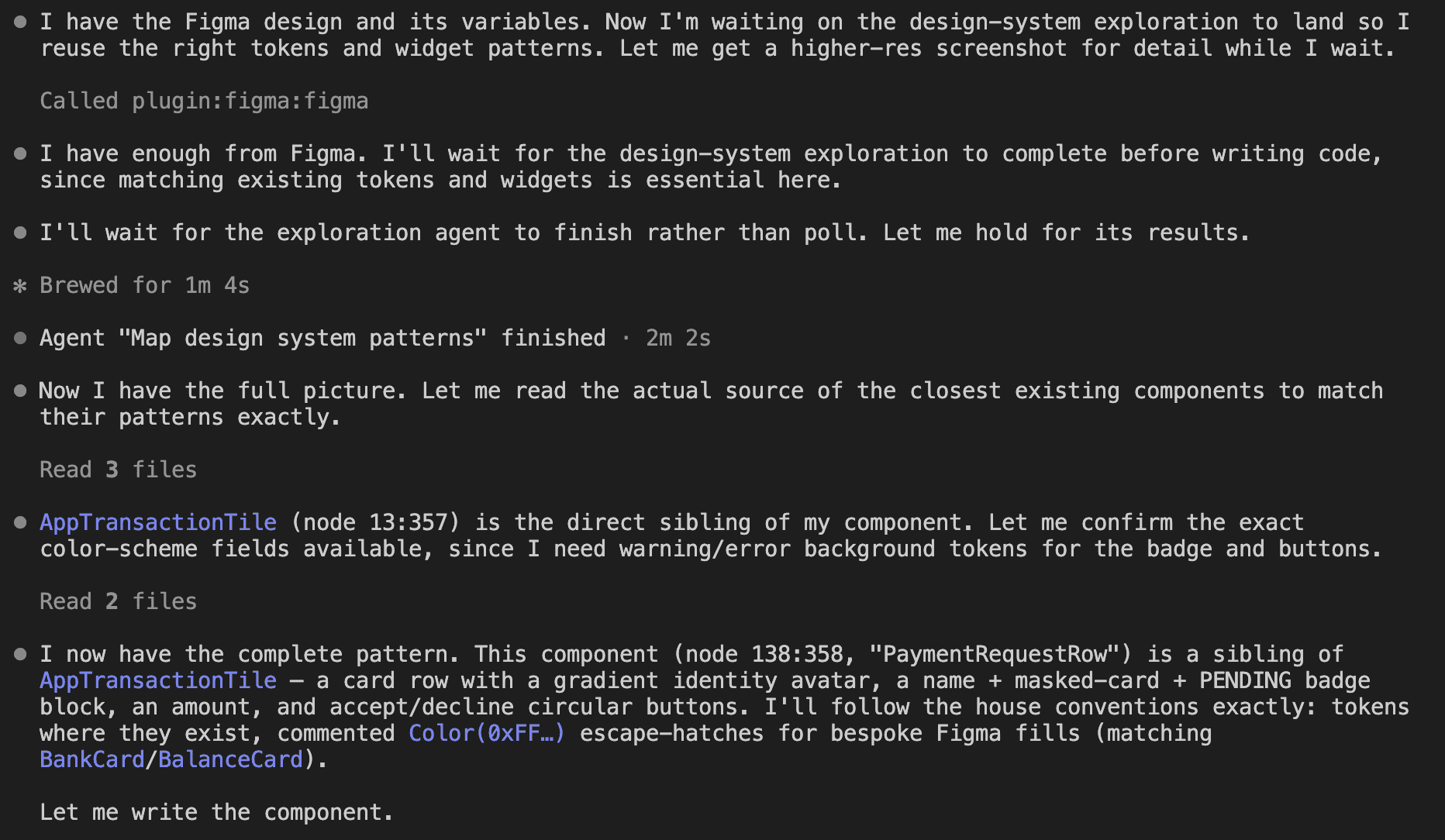
The agent understands that the existing AppTransactionTile is similar to the PaymentRequestRow we want to implement. It can use the existing pattern to easily match the new component to the design system.
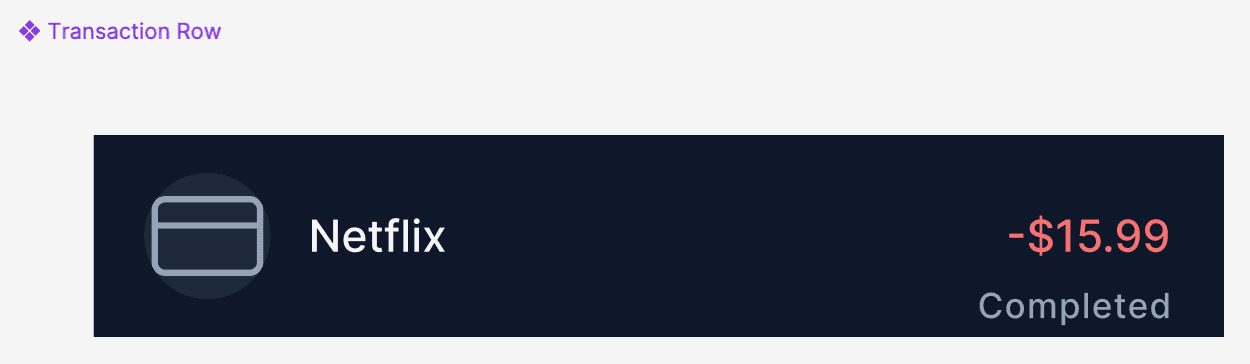
The agent then builds the PaymentRequestRow component according to the Figma design and design system styles.
The agent generates Widgetbook stories and scenarios
Once the agent generates a widget or screen, it writes the story file immediately. The story is what makes the next phase possible, and the agent writes scenarios for the states it created, not just an empty Default.
Self-correct: the local loop in flutter test
The feedback loops runs locally in flutter test. It is deterministic, only takes seconds, and runs identically on the developer's machine and in CI.
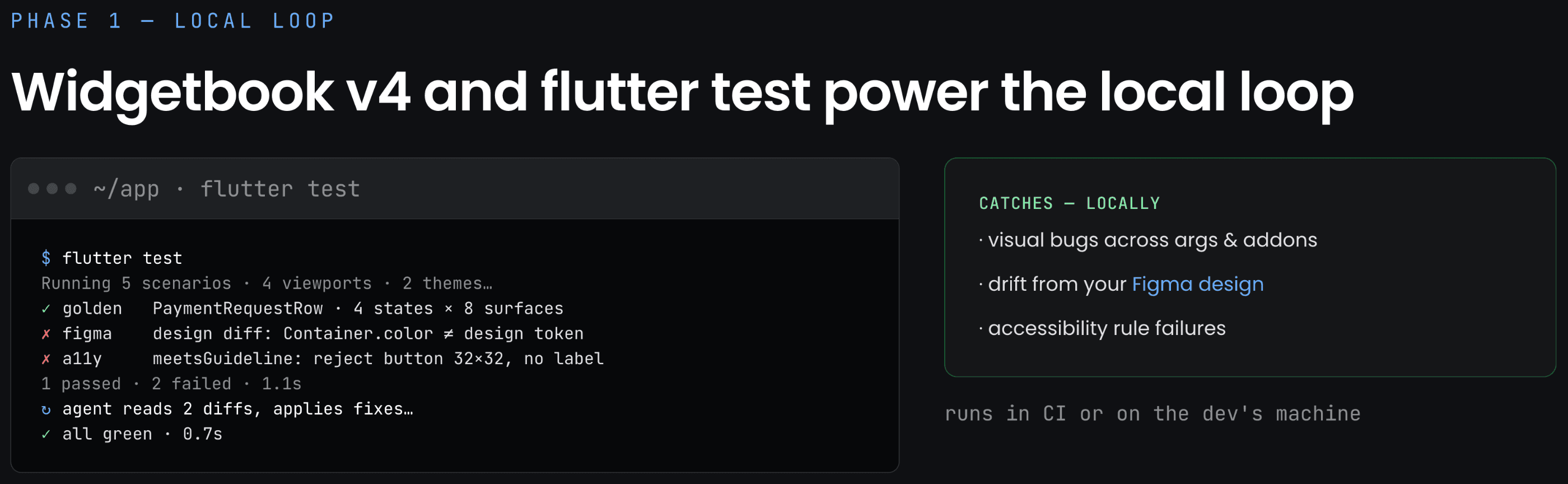
Three classes of checks run in the same pass: scenario tests, a Figma design diff, and accessibility rules. Each one returns structured feedback, which is what lets the agent close the loop on its own.
Check one: scenario, golden, and interaction tests
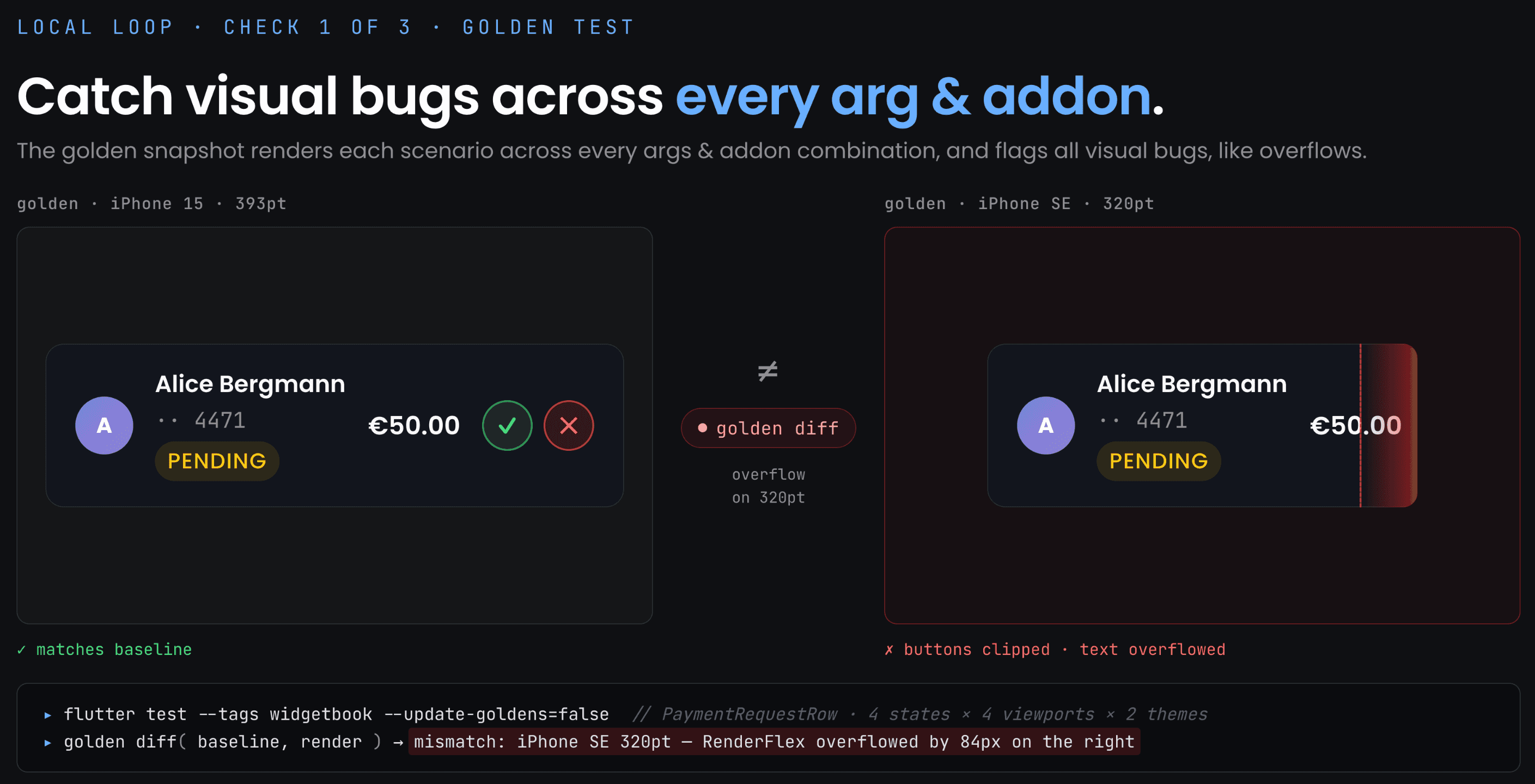
Widgetbook generates a snapshot for every _Scenario. For interaction scenarios, the test result tells the agent whether the widget behaved correctly:
If a test fails, the agent reads the assertion error, identifies what went wrong, fixes the widget, and runs again. The feedback is a list of failed scenarios with the exact assertion that failed, not a wall of log output it has to interpret.
Check two: diff the render against the design itself
A passing golden test proves the UI is stable. It does not prove the UI matches the design. To check that, the agent compares against the source of truth: the Figma frame.

Over the Figma MCP server, the agent pulls the design node and diffs it against Widgetbook's golden file and widget tree.
This is not a guess about whether the screen looks right. The agent learns that the approve button shipped Color(0xFFFF0000) while the design specifies colorScheme.error at #DC2626. The fix is to resolve the token, not to nudge a pixel. This check is what catches drift from your Figma design before anyone opens a PR.
Check three: accessibility rules in the same test run
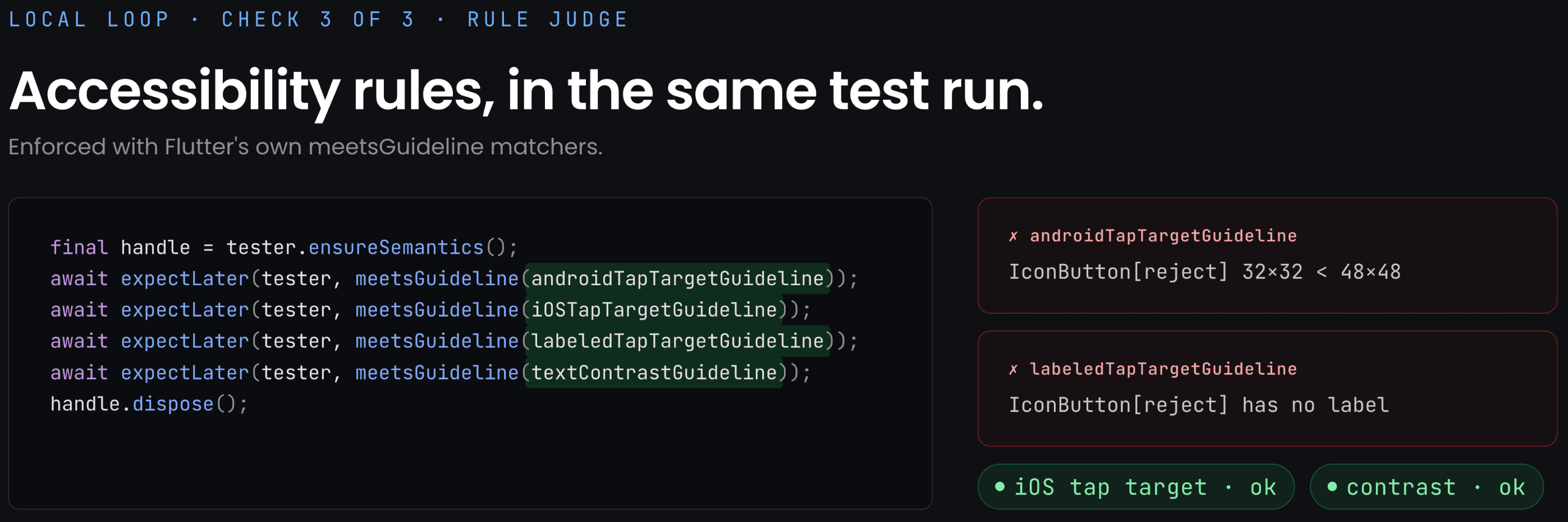
Accessibility is enforced with Flutter's own meetsGuideline matchers. There is no separate accessibility service to run and no separate pipeline to maintain.
Check out our dedicated accessibility testing guide for more details.
The agent fixes itself
With a Figma diff and two accessibility failures in hand, the agent does not need a human to translate the feedback. It reads the diffs and rewrites the widget.
Two fixes, both driven by structured feedback: the theme token from the Figma diff, and the 48x48 labeled target from the accessibility check. The loop repeats from generation until the run is all green. The developer sees only the final result.
Phase 2 — Review: human approval in Widgetbook Cloud
Once the local loop is green, the agent opens a pull request. This is the handoff from automated correctness to human judgment, and Widgetbook Cloud is the review surface.
Here, you can see a 1-minute demo video of Widgetbook Cloud:
What the human reviews
On the PR, the reviewer works in Cloud rather than the running app:
Visual diffs per scenario, in every Mode. Cloud renders every scenario the agent defined across light and dark themes, every breakpoint, every locale, every device size, and shows a diff for each. For UI review the visual diff is the primary artifact, not the line diff in the Dart file.
Interaction results. Did the counter increment, the form validate, the modal close? The reviewer trusts the interaction test result instead of exercising every flow by hand.
Structured approval. Review happens at the scenario level, so feedback maps to a named scenario and the agent can act on it precisely in the next iteration.
Accessibility review
Regressions against the baseline. Cloud captures the semantics tree for every scenario and diffs it against the previous build, the same way it diffs the visual render. A change that quietly drops or alters an accessibility property surfaces as a regression the reviewer can catch before merge, even when the screen looks identical. If a node that used to announce an "Accept" label comes back with no label, Cloud shows the change side by side.
Rule-based violations. Accessibility checks are rule-based and map to WCAG. They are deterministic and report objective violations, so a touch target that is too small or a control with no label shows up as a specific, sourced finding rather than a vague warning.
Here the label is gone, which a pure visual diff might miss but a screen reader user would not.
Check out our dedicated accessibility testing guide for more details.
The division of labour
The split between agent and human is intentional.
Layer | Who | What they do |
|---|---|---|
Story files | Agent | Reads design system context before generating |
| Agent | Self-heals on scenario, Figma, and accessibility feedback |
Widgetbook Cloud | Human | Reviews visual diffs and accessibility, approves the PR |
The agent owns coverage and correctness. The human owns judgment. The reviewer sees a clean PR where tests pass, the render matches Figma, the touch targets are large enough, and the labels make sense, and spends their attention on the questions that actually need a person.
Getting started
You can adopt this incrementally:
Write a skill. Start with our
SKILL.mdbut adapt it to your specific project so that the agent understands your design system, your token conventions, and a couple of example stories from your own codebase.Co-locate stories with scenarios. Make
*.stories.dartthe standard output of building any widget, with one scenario per meaningful state.Turn on the local loop. Run golden, Figma MCP, and
meetsGuidelinechecks underflutter testso the agent gets deterministic feedback it can act on.Review in Cloud. Push CI builds to Widgetbook Cloud and let humans approve visual and accessibility diffs per scenario.
Strong foundations are what make agentic development work. A design system that an agent can read, test against, and be judged by is one of the strongest foundations you can give it.